
Chapter 7: Hello World!

--
1. Tools Necessary For This Chapter


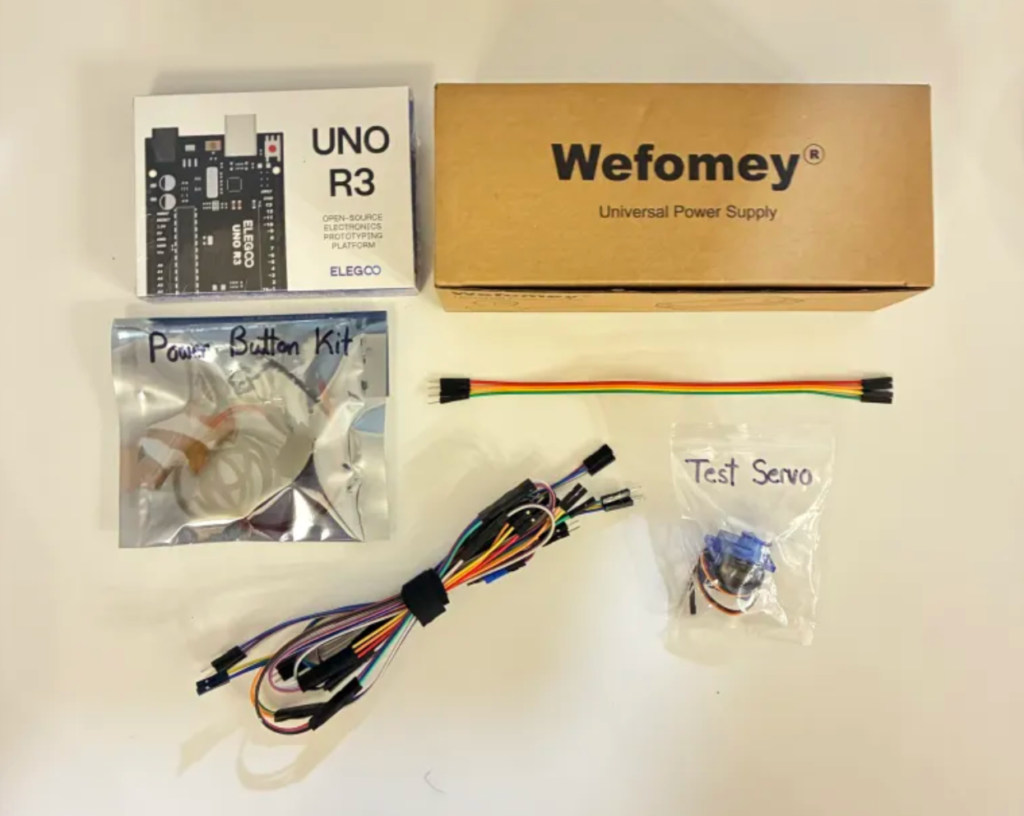
⬢ For this chapter, please prepare:
2mm Mini Flathead Screwdriver for the terminal block (included)
Electrical tape for the wire connections. (included)
Laptop for programming the servo position.
Wire Cutters for trimming things as needed.
Scissors for cutting tape.

--
2. Gather Parts


⬢ For this chapter, please gather the following bags and parts. (Some may still be out from Chapter 6). Also have your progress from Chapters 1-6 ready!:

--
3. Wire the PCB!

It's time to check if our PCB works!

🛠️ Needed Parts: Your Finished Arm PCB (1x), Multimeter (1x), Power Supply (1x), Power Supply Adapter Head (1x), Power Button (1x), Mini Test Servo (1x)

Unplug your Power Supply Adapter Head

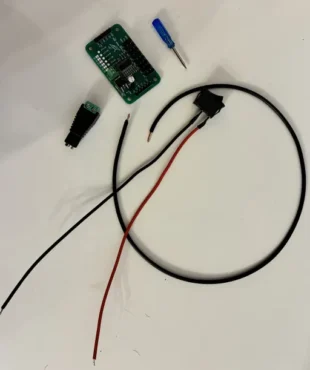
Find and unplug your Power Supply Adapter Head. Remove all wires from it. Find your Power Button Kit and pull all the components out.

The Power Button

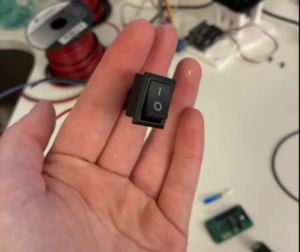
This little button is called a rocker switch, and its job is very simple: it lets electricity pass through or stops it, like a door.

When the switch is ON (the side with the I), the door is open and electricity can travel along the wire to power things. When the switch is OFF (the side with the O), the door is closed and electricity can’t get through. We usually put a switch in the power wire, between the battery (or power supply) and the rest of the project, so turning the switch OFF means nothing can turn on.

Important: The red and black wires on a switch do NOT mean power and ground. A switch doesn’t care which way electricity flows... it’s just a gate. Power can go in either side and come out the other, and it works the same every time.

Connect the Power Button

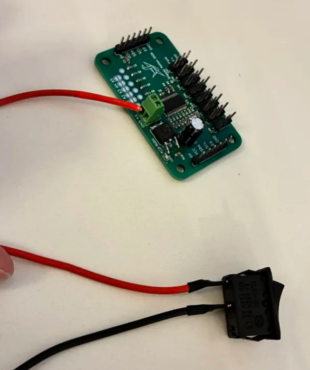
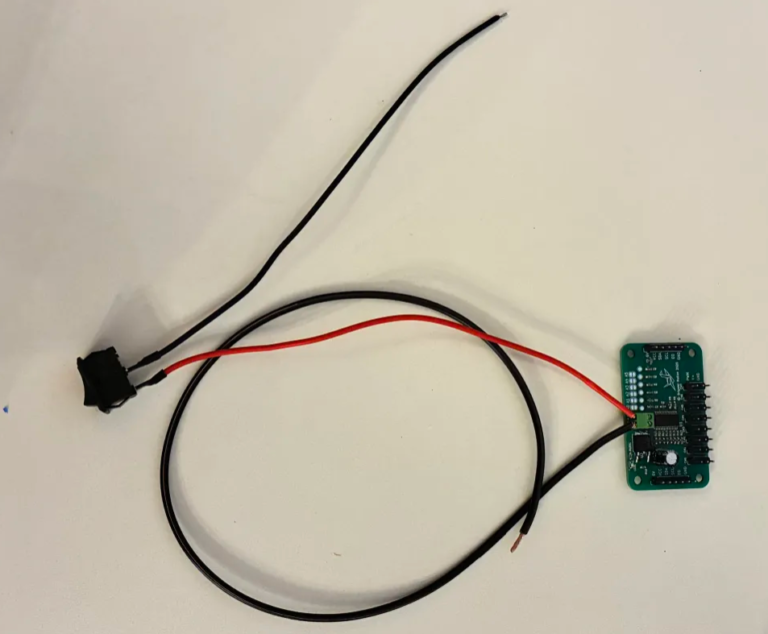
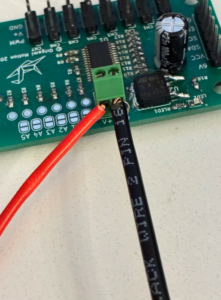
Using the included mini flathead screwdriver, insert the button wire into the section of the green terminal labeled V+. Unscrew the top screw, slide the wire in, and then screw it tight.

You should be able to firmly tug the wire, and it will hold in place without coming out.

Warning: You do not want extra wire sticking out! If the metal section of the wire is a little too long for the terminal, trim and try again.

📌 Pro Tip: If you have a hard time sliding the wire into the housing, twist the wires tight together.


Connect the Spare Black Wire

Using the included mini flathead screwdriver, insert the spare black wire that is not attached to the button into the green terminal section labeled GND. Unscrew the top screw, slide the wire in, and then screw it tight.

You should be able to firmly tug the wire, and it will hold in place without coming out.

Warning: This is NOT the black wire of the button! The black wire of the button should not be attached to anything.

You should have this!

Confirmation!

Double check that any metal still visible within the red and black wires is not touching. If there is any contact at all, even a little, do not ignore it. Reseat the wires.

Well-attached wires should look something like this!

Attach the Power Supply Adapter Head

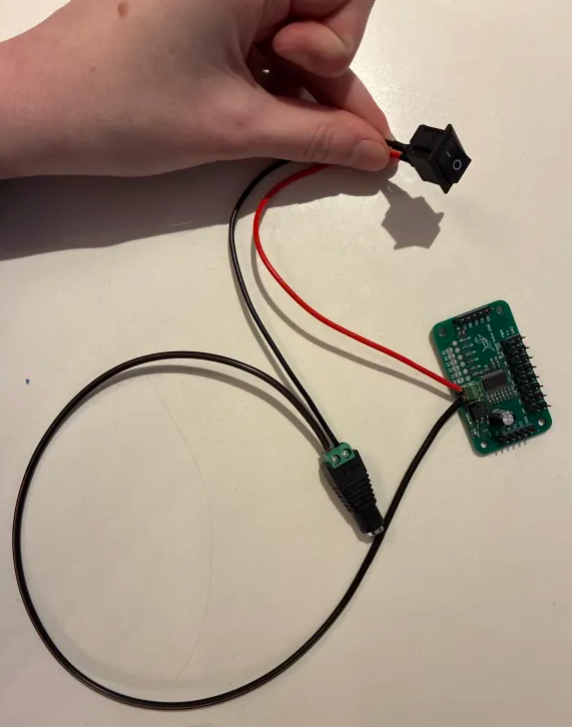
Connect the other side of both wires to the power supply adapter head. The button's black wire should go into the Power (+) side of the terminal block. Remember that this button goes through the power rail!

The spare black wire should go into the GND (-) side of the terminal block. This one goes through the GND rail.

Warning: Double check this step three times. Your wiring should be:

V+ of the PCB ➤ Red Wire of the Button ➤ Black Wire of the Button ➤ (+) of the Power Supply Adapter Head.

GND of the PCB ➤ Spare Black Wire ➤ (-) of the Power Supply Adapter Head.

It should look like this.

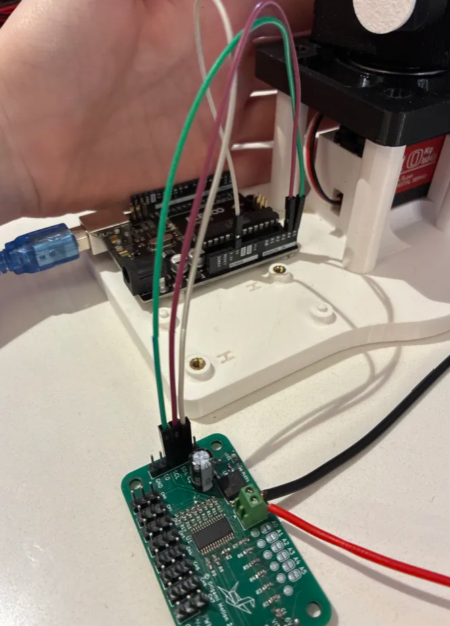
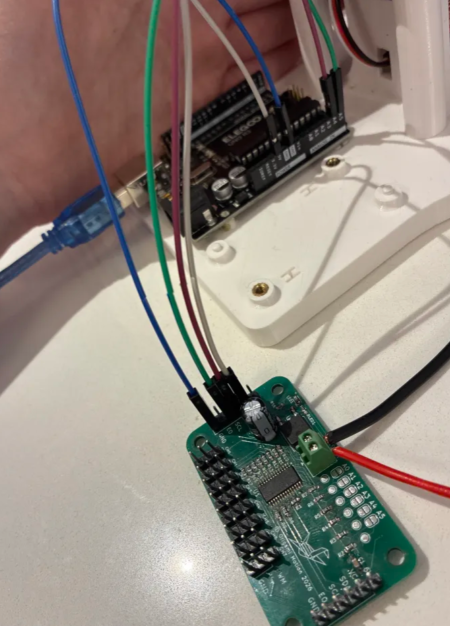
Find the PCB ➤ Arduino Wires

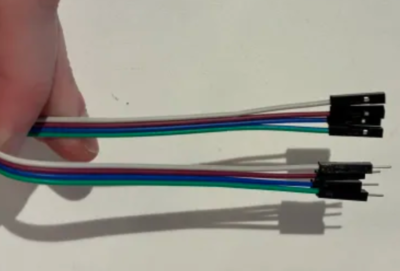
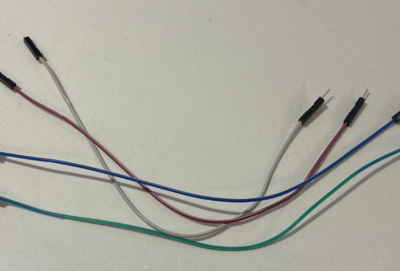
Find the set of PCB ➤ Arduino Wires. These can be in any color.

Slowly pull the wires apart until you have four wires.

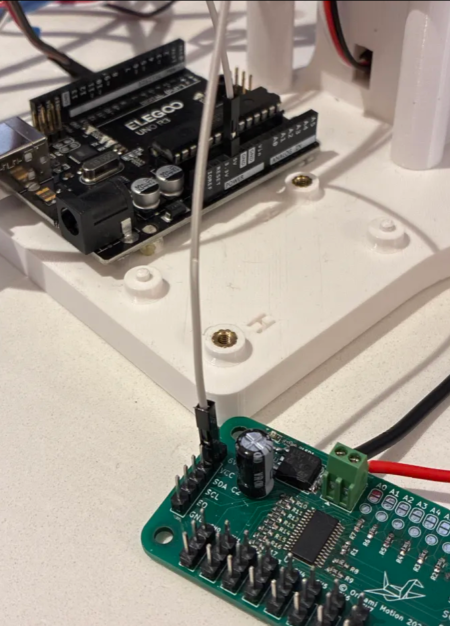
Wire the VCC Rail

Warning: Make sure your Arduino is unplugged for this step.

Connect one of the four wires (any color) between:

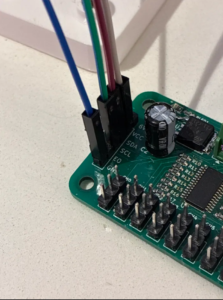
⬢ VCC on the PCB, and

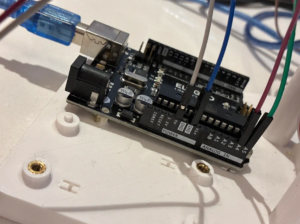
⬢ 5V on the Arduino.

There are two things that receive power in this system. There's the motors--they receive 6V of power. There's also the PCB itself; it needs 5V of power, which the Arduino gives. The PCB receives power over the VCC pin.

Wire the SDA (Serial Data) Rail

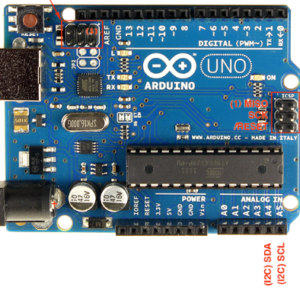
Connect one of the four wires (any color) between:

⬢ SDA on the PCB, and

⬢ A4 on the Arduino.

This wire carries the commands the Arduino sends to the PCB, like which channel to move and what position to set a servo to.

On an Arduino UNO, the SDA pin is always A4.

Wire the SCL (Serial Clock) Rail

Connect one of the four wires (any color) between:

⬢ SCL on the PCB, and

⬢ A5 on the Arduino.

This wire keeps the Arduino and the PCB in sync so the PCB knows exactly when to do each command. On the Arduino, the SDA pin is always A5.

Wire the GND Rail

Let's ground it all together! Connect the last of the four wires (any color) between:

⬢ GND on the PCB, and

⬢ GND on the Arduino.

This grounds the Arduino to the PCB to the motors to the power supply. Basically, it grounds everything together.

Double Check!

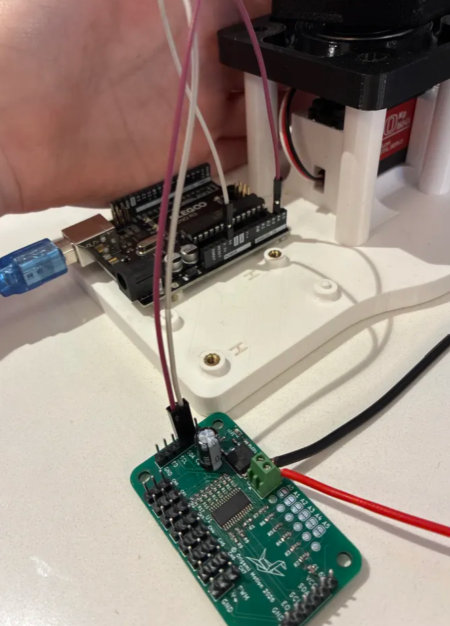
Make sure you have the following connections!

⬢ VCC on the PCB ➤ 5V on the Arduino

⬢ SDA on the PCB ➤ A4 (SDA) on the Arduino.

⬢ SCL on the PCB ➤ A5 (SCL) on the Arduino.

⬢ GND on the PCB ➤ GND on the Arduino.

Plug in the Arduino

Plug the Arduino into your computer to energize your PCB.

You don't need any code for this yet. The little green LED on the PCB should come on. If it doesn't, check all of your wires one more time. If it still doesn't work, skip the next section and move to "Troubleshooting my PCB."

If your LED came on, then unplug your Arduino and keep going to test a servo!

Warning: IF AT ANY POINT YOU SEE SMOKE OF ANY KIND, UNPLUG THE ARDUINO FROM YOUR COMPUTER IMMEDIATELY.

Find Your Test Servo

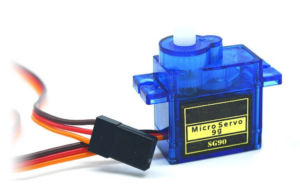
With your kit, you should see a small blue Test Servo. This is a mini low current servo used for testing. Testing with small load parts is always better than testing with a whole robotic arm at once. If there's a small problem with your board, you don't want to destroy your entire new robotic arm!

Plug in the Test Servo

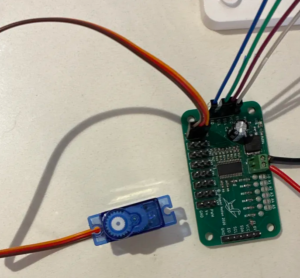
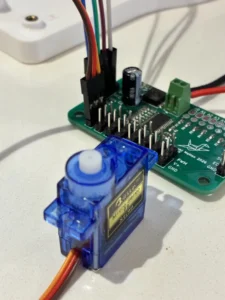
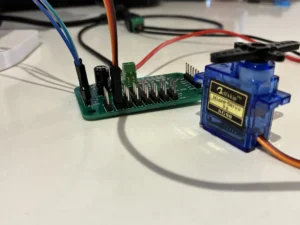
Carefully plug your motor in like shown. You will wire this the same way you've wired the other servos before!

⬢ GND (Brown/Black) on the Servo ➤ GND on CH0 of the PCB

⬢ V+ (Red) on the Servo ➤ V+ on CH0 on the PCB.

⬢ PWM (Yellow/Orange) on the Servo ➤ PWM on CH0 on the PCB.

Install Software Libraries

The code we're going to write for our Arduino -> PCB is a little different than the code we wrote for just one servo.

The chip on our PCB is something called a PCA9685. It's a driver for PWM.

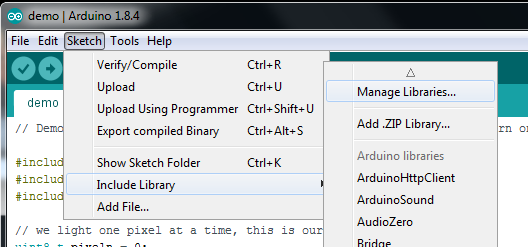
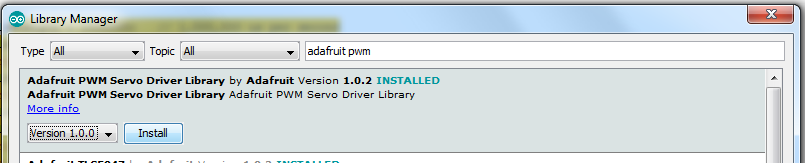
To send clean PWM signals, we need to install an Arduino library. Open your Arduino IDE! Once you're in Arduino IDE, navigate to the Library Manager. The library we're looking for is available from Adafruit.

Type in adafruit pwm to locate the library. Click Install.

Set Up the Test Code

We'll explain exactly how this code works and what it does later, when we're coding our real arm. For now, put this code in-- NOT the other code!

Open a new Arduino IDE Sketch and copy/paste this in. Once we know our board works, we'll jump into coding from scratch.

Plug in your Arduino again, wait for the PCB LED to come on, and Upload this code.

#include <Wire.h> 
#include <Adafruit_PWMServoDriver.h> 

Adafruit_PWMServoDriver pwm = Adafruit_PWMServoDriver();

#define SERVO_CHANNEL 0   // change this (0–7)

#define SERVO_0   500
#define SERVO_90  1450
#define SERVO_180 2400

void setup() {
  pwm.begin();
  pwm.setOscillatorFrequency(27000000);
  pwm.setPWMFreq(50);
  delay(10);
}

void loop() {
  pwm.writeMicroseconds(SERVO_CHANNEL, SERVO_0);    // 0°
  delay(1000);

  pwm.writeMicroseconds(SERVO_CHANNEL, SERVO_90);   // 90°
  delay(1000);

  pwm.writeMicroseconds(SERVO_CHANNEL, SERVO_180);  // 180°
  delay(1000);
}

Plug in the Power Supply

Let's get this motor spinning! Plug in the 6V power supply. Once it's on, carefully attach the Power Supply Adapter Head. Turn your power button on.

Warning: IF AT ANY POINT YOU SEE SMOKE OF ANY KIND, UNPLUG THE ARDUINO FROM YOUR COMPUTER IMMEDIATELY.

Your test motor should start spiiiiiiiinning!

If it doesn't work, check all of your wires one more time and make sure your Arduino IDE didn't return any errors. If it still doesn't work, skip the next section and move to "Troubleshooting my PCB."

Test Each Motor Channel

The PCB has 8 onboard channels, CH0 - 7. We need to make sure each one works. Click your power off, and move the servo from CH0 -> CH1 on the PCB.

Find the line of code that looks like this in your test code.

#define SERVO_CHANNEL 0   // change this (0–7)

Change the number 0 to the number 1, and upload your code.

Click the power button back on, and watch the next motor spin.

Test each motor channel one by one to see if they work. If they all work, you made a perfect PCB! If one doesn't seem to work right, move on to "Troubleshooting my PCB."

--
4. PCB Troubleshooting Guide

“I spent alllll that time on this board, and it doesn't work!"

If your board doesn’t work, don’t worry. This almost always means one solder joint isn’t quite right, not that anything is broken.

When something doesn’t work, don’t randomly poke at it. We always start in the same place and move forward one step at a time.

Electricity is lazy; it stops at the first bad connection. Our job is to find where it stopped. We’ll follow the electricity step by step and see where it stops.

If you're a pro, and your board already looks great... great! You can skip this whole section and move onto 5. Wiring the Arm.

Note: We are testing the board in stages. Each stage proves something works before moving on.If something fails, stop and fix that stage before continuing.

GUIDE: If:

- Your Green LED doesn't light up ➤ Skip to STAGE 1
- Your Green LED lights up, but none of your servos are spinning ➤ Skip to STAGE 2
- One or more of your servos are spinning, but not all of them ➤ Skip to STAGE 3
- All other cases ➤ Start from STAGE 1

STAGE 1: Wiring and Orientation Check (do this first, every time)

Goal of this stage:

✔ Power from the Arduino reaches the board

✔ Ground is connected

✔ The board can turn on

Step 1: Wiring Check

Before plugging anything in, check the wires. Arduino → PCB connections:

⬢ 5V → VCC

⬢ GND → GND

⬢ A4 → SDA

⬢ A5 → SCL

What to look for:

Each wire goes to the correct labeled pin.
No wire is one pin off.
No wires are loose.

💡 Rule: If the labels don’t match, don’t plug it in.

Step 2: Power Test

Plug the Arduino into USB and turn the board on. Look at the power LED.

❌ IF Power LED is OFF:

This means power is not reaching the board.

What to check (in this order):

1. Board power connector pins. Flip the board over.

    ⬢ Header Pins with no solder

    ⬢ Header Pins that look dull or cracked.

    ⬢ Header Pins where solder doesn't touch the pad.

2. Power LED direction. Check the LED.

    ⬢ The green dot must face the (-) side on the board symbol. If it’s backwards, the LED will never turn on.

    ⬢ Make sure both ends are soldered, and that the LED is flat on the board.

    ⬢ Make sure nothing looks blackened or burnt out.

3. LED Resistor. Check RLED.

    ⬢ Make sure both ends are soldered, and that the resistor is flat on the board.

🔄 After fixing anything:

    ⬢ Unplug USB → wait 5 seconds → plug back in. Check the LED again.

💡 Recommendation: Reheat each header joint until the solder becomes shiny and wraps the pin. Re-solder any parts that aren't fully connecting. If a part is blackened or visibly browned out, remove it and replace with a spare.

✅ IF Power LED is ON:

Excellent. That proves:

    ⬢ Arduino wiring is correct. Power and ground work. The board is at least partially alive.

Now move forward.

STAGE 2: Servo Power Check

The green LED can light up if the BOARD has power, but that doesn't mean the servos are receiving it! Let's check what we're actually seeing. Goal of this stage:

✔ Power from the Power Supply reaches the servos

✔ Ground is connected

✔ The board can turn on

Step 1: Set Up Your Multimeter

1. Turn the dial to DC Volts (V⎓)
2. Use a range that includes 6–10V
3. Black probe → COM
4. Red probe → V
5. Plug in the main power supply.

Step 2: Measure Servo Power at a Servo Port

Use any servo channel (CH7 is fine).

Place your black probe on the GND pin. Place your red probe on the V+ pin. Do not touch the PWM pin.

✅ You should see:

About 5.5–6 volts. This value should be very close to the value your power supply displays.

❌ If you read ~0V:

This means servo power is NOT reaching the board. First check if your power button is on. If not, turn it on.

⚠️ If you see 5.5-6V, but the voltage jumps or flickers, this means:
A weak or cracked solder joint
Power is barely making contact

What this tells us:
Arduino power works
Servo power path is broken

Check these parts:
Main green power terminal connector pins
Power input header
Large capacitors


💡 Fix: Reheat every pin of the main power connector and power header.

🛑 Do NOT continue until you measure ~6V at the servo port.

✅ If you read ~6V

Perfect. The servo power is confirmed. Now we check signal delivery.

STAGE 3: Signal Wire Check

Let's check that the signals we're sending from the Arduino are actually reaching the servos.

Goal of this stage:

✔ Signal from the Arduino reaches the servos

✔ Power from the Power Supply reaches the servos

✔ Ground is connected

✔ The board can turn on

Step 1: Servo Plug Orientation

Before blaming solder:

Check your wires.

Servo -> PCB:

Brown/Black on the Servo -> GND
Red -> V+
Yellow/Orange/White -> PWM

If the servo is backwards, it will not move. Nothing is damaged...It just won’t work. If your orientation is good, move on to Step 2.

Step 2: Servo Channel Solder Check

Plug the servo into CH0. Run your Arduino code that we set up earlier. Make sure there are no errors in the upload. You will see the word "Uploaded" if it ended up on the board successfully. With your Arduino and Power Supply both plugged in and on, does your motor spin?

❌ Servo does not move

What to check:

Servo header solder joints. Flip the board over.

Look for:

Pins that wiggle
Dull or cracked solder
Solder that didn’t flow all the way around

Fix: Reheat all 3 pins of the CH0 header.

Step 3: PWM Resistor Solder Check

Each servo signal passes through a small resistor.

If it’s:
Missing
Lifted on one side
Only soldered on one end

…the servo will never receive a signal.

💡 Fix: Reheat both ends of the resistor.

Step 4: SDA and SCL Comms Check

At this point:

Arduino power works
Servo power is confirmed (measured)
Servo wiring is correct
Channel hardware is good

If the servo still doesn’t move, the board may not be receiving commands.

Check SDA and SCL header pins:
Are they soldered?
Are they shiny?
Are they bridged together?

💡 Fix: Reheat and clean up these two pins.

Step 5: 30-Second Full Board Scan

This fixes most remaining issues.

Look for:
Solder bridges
Dull gray joints
Crooked parts
Pads soldered on only one side

If it looks suspicious:
...Reheat it!

✅ Your motors should be spinning now.

STAGE 4: Really Lost?

Contact us, and we'd love to help fix your board.

Send us a photo!

--
5. Wiring the Arm.

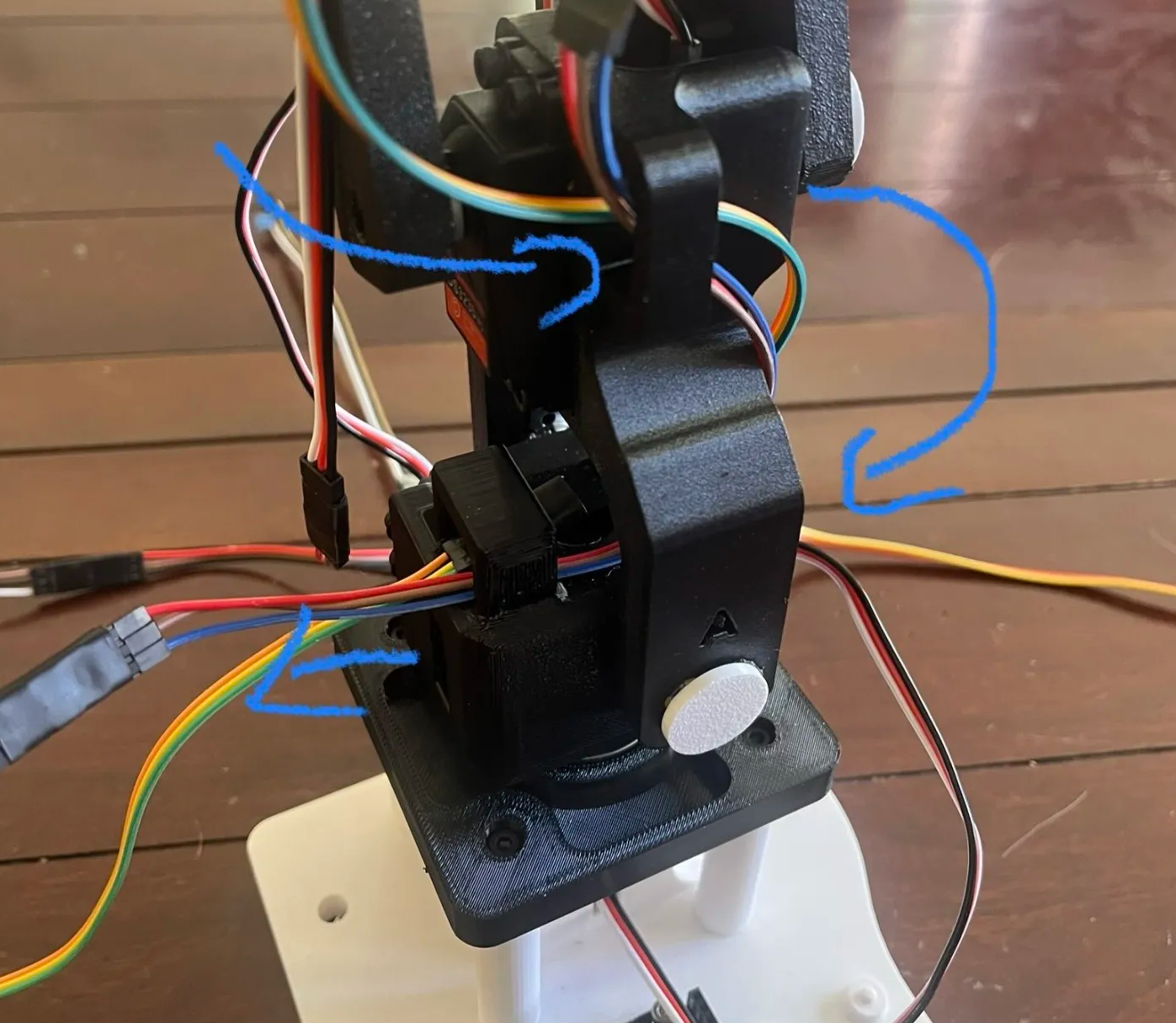
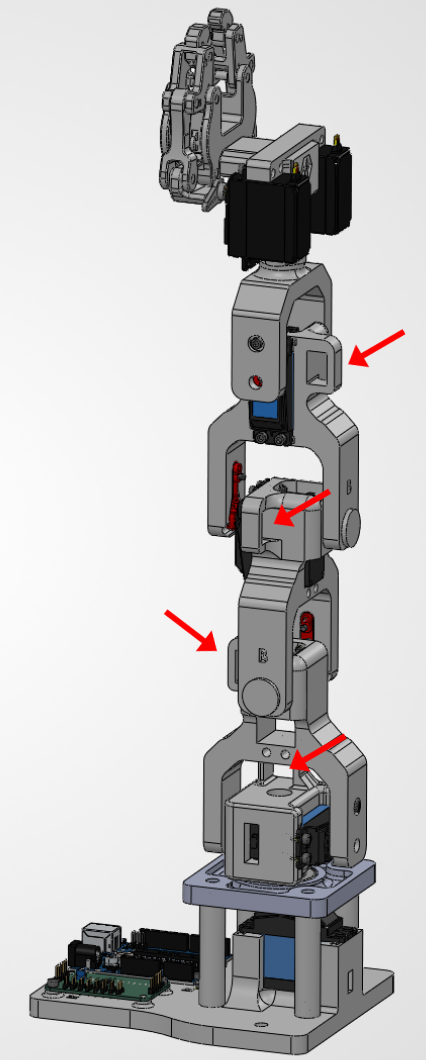
When designing, you have to start with thinking about how everything interacts with each other, for example, where do the wires go? If I move link A, what are the consequences? Some of the things we need to think about is a) let's not make this look like an ugly rats nest of wires. b) Let's not have the arm linkages slam against the wires and eventually damage them.

Wire Passthrough Channels

Here are some reasons why wire channels are important, as well as thoughts you should have as an engineer.

  • Protect wires from sharp edges, heat, and moving parts

  • Control routing so wires don’t interfere with mechanisms

  • Reduce strain & fatigue to improve reliability

  • Simplify assembly with predictable wire paths

  • Improve serviceability for repairs and upgrades

  • Clean, professional design that looks engineered
╰┈➤ Go to Step 2: Gather the Provided Wires

Gather the provided wires.

We have provided additional wires for you to attach to extend the servos' factory wire lengths. There are no additional wires needed for the T1 or L1 Servos, since their default wires are already long enough. These are all Male-Female wires because the holes they plug into are female (Servo) and male (header pins on the PCB). In electronics there are M-M, M-F, and F-F wires.
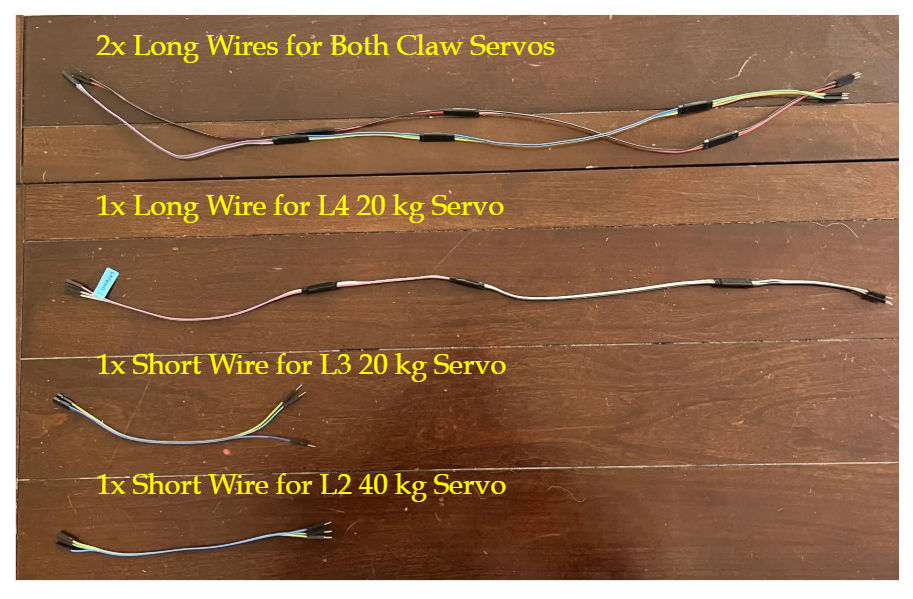
╰┈➤ Go to Step 3: Label the Wires

Label the wires.

Color doesn't matter too much, but a good rule of thumb is brown/black/green for ground. Servos all follow the same wiring scheme regardless of form factor or size.

For example, power line is always in the center. Take all sets of the extra wires and label the ground wire and the associated servo. You will thank yourself later. You can write on a piece of tape and loop it onto the FEMALE Side of the wires. If you know which servo it's for, and where ground is, you can easily attach the wires to the correct places every time. Example: For the claws specifically, name them however you'd like (recommended: LC/RC), just be consistent with labeling in both the real world, and in code. You can label as much as you want. Don't just rely on your memory for what something is, it never hurts to be organized. As a great poet of our time once said...
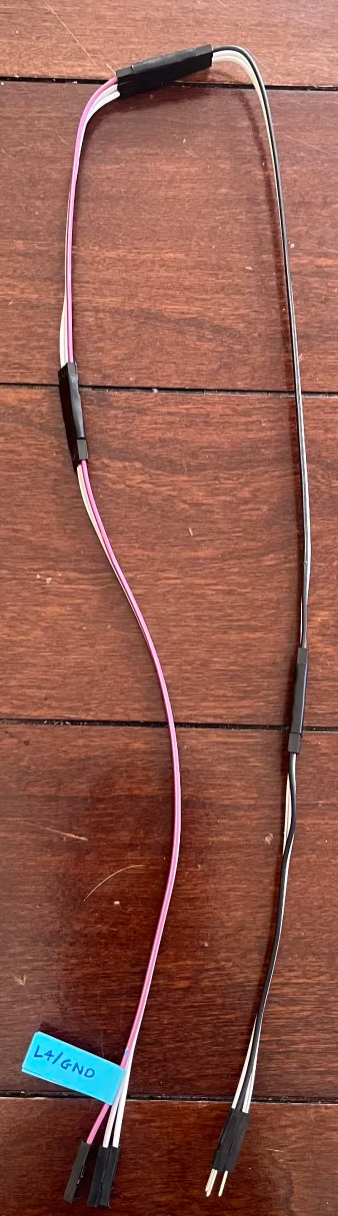

╰┈➤ Go to Step 4: Connect the Wires and Start Looping!

Connect extension jumpers to their associated servo.

For every servo except T1 and L1, start connecting the male ends of the extension jumper wires to the female ends of the servo wires they go with. Use a little bit of either hot glue or electrical tape to connect the joints together. This helps prevent it unplugging itself later from motion. They should look like this:
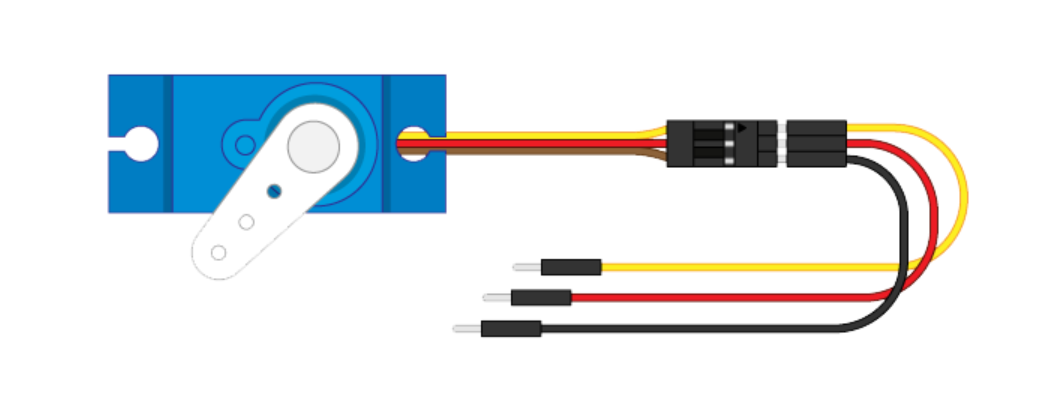
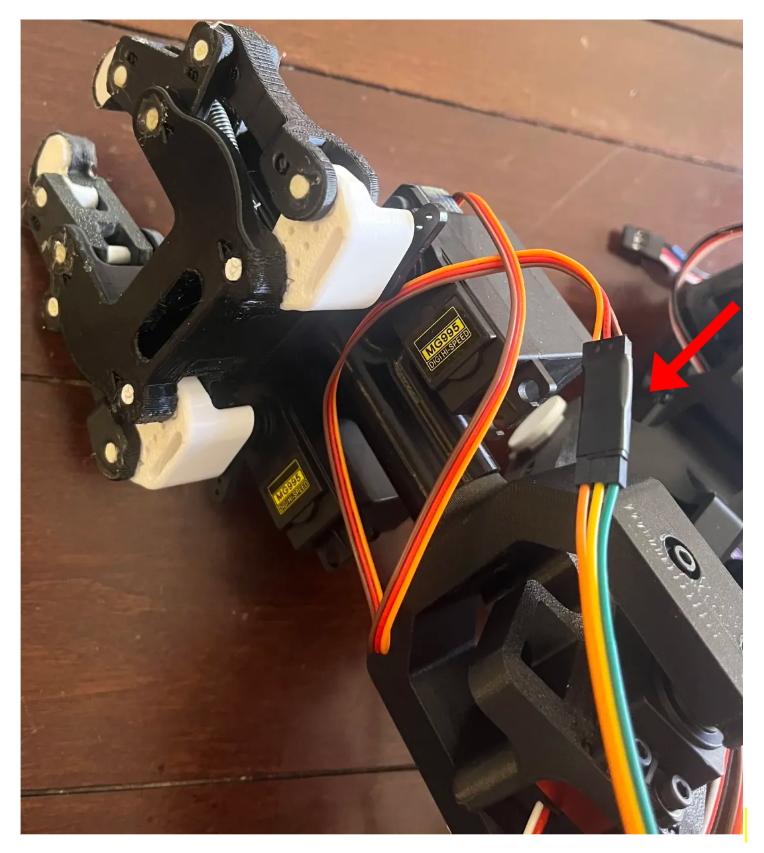
Start looping from top down.

Start with the claws then go to L4, L3, L2, and L1. T1 gets plugged directly into the PCB. This is for the two claw wires only, the steps are the exact same for the rest!
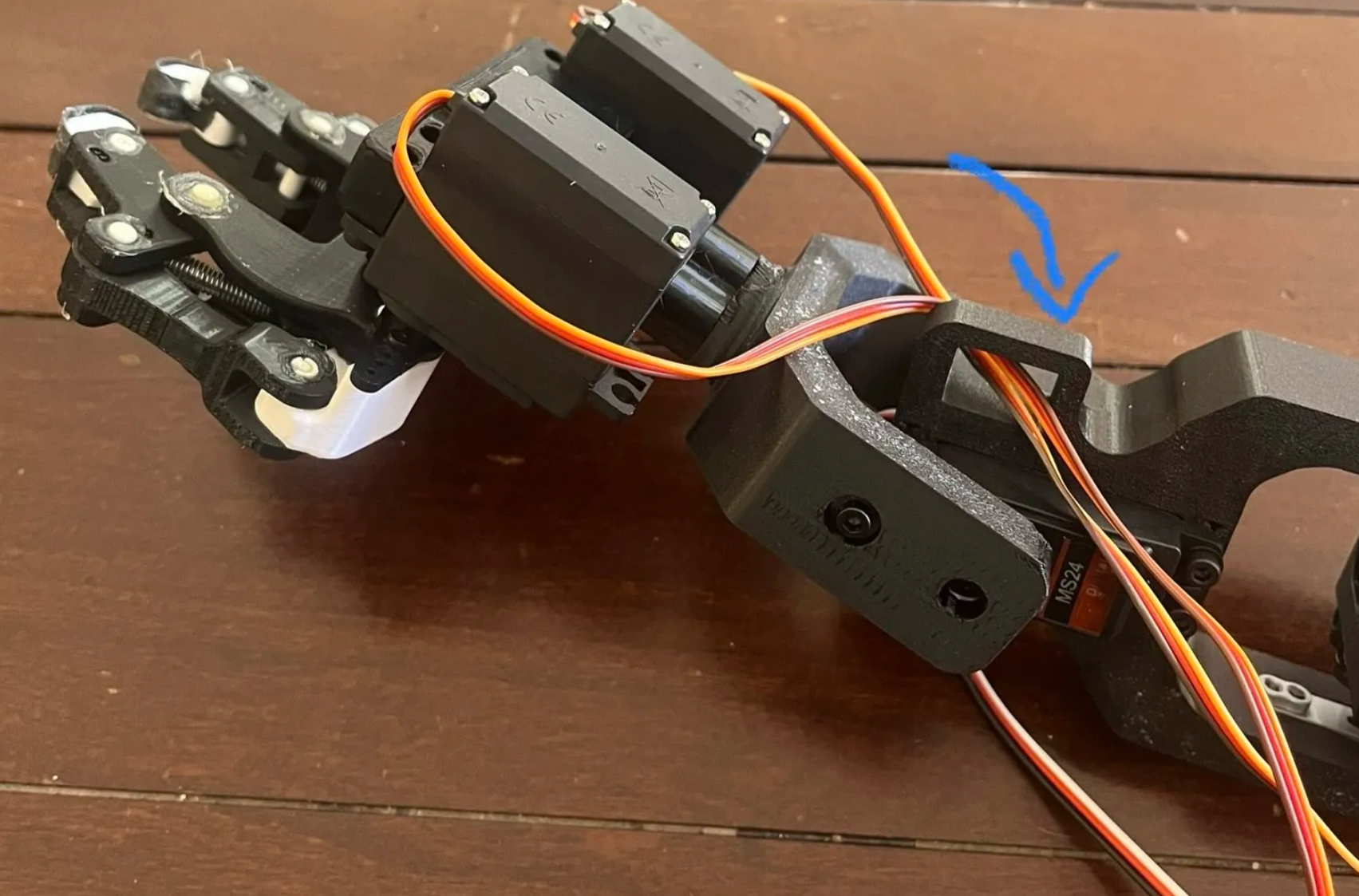
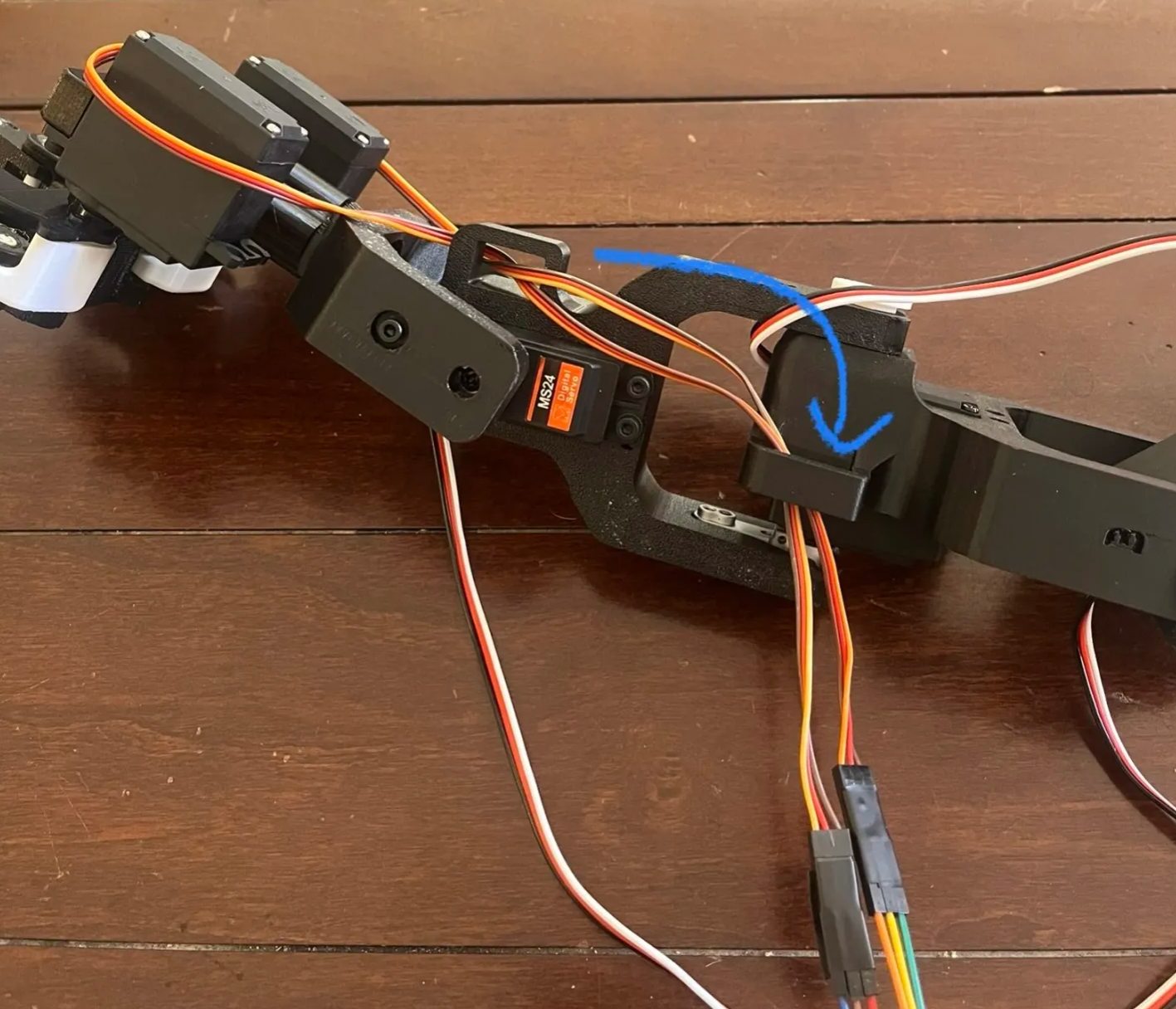
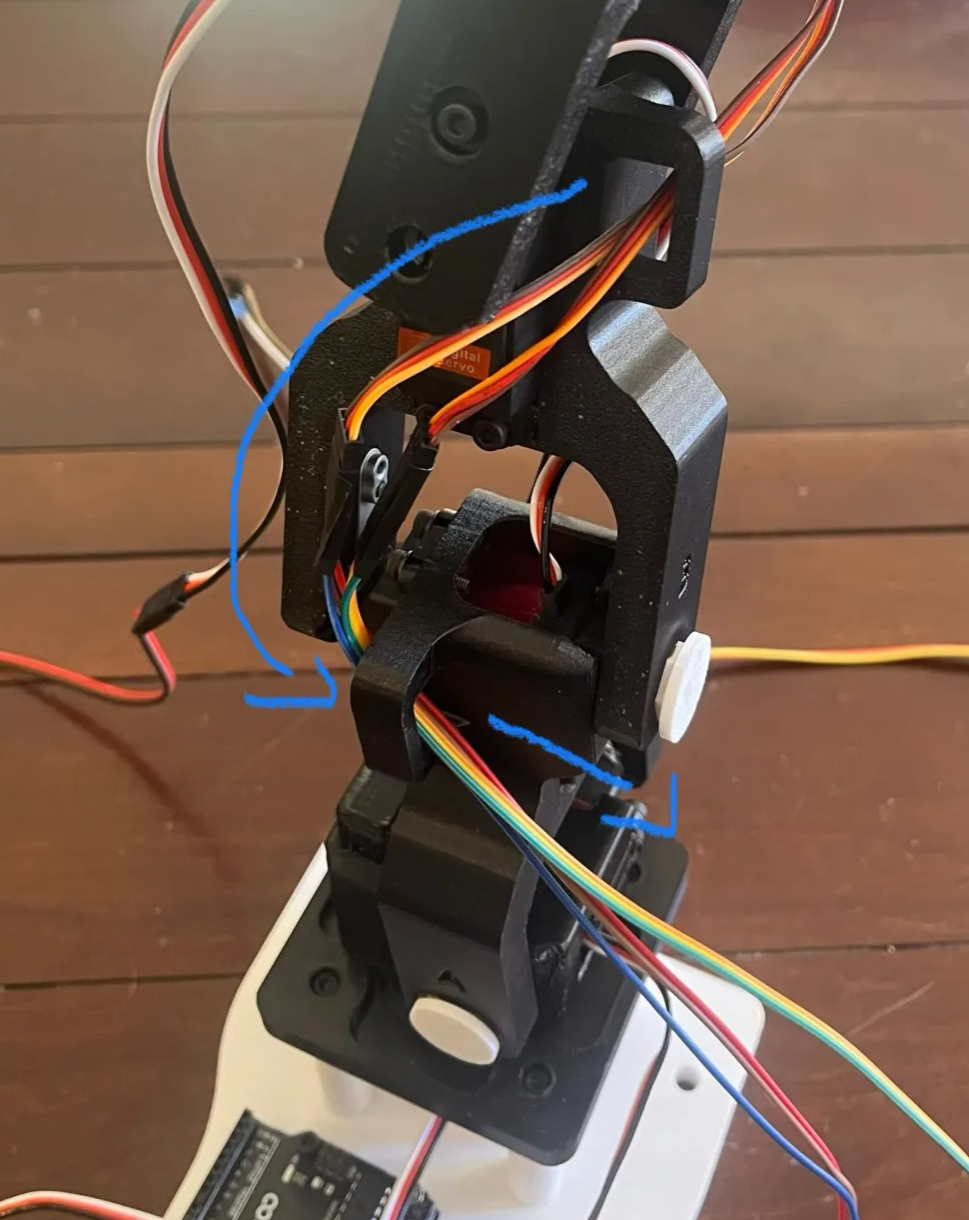
╰┈➤ Go to Step 5: Quick Check

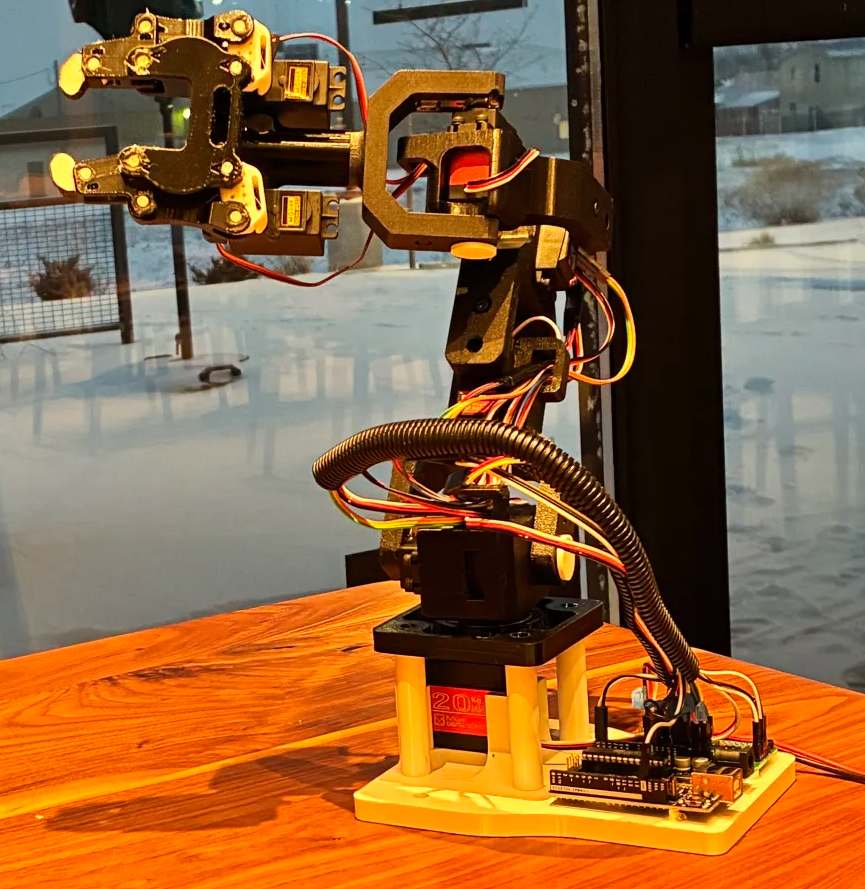
Quick Check!

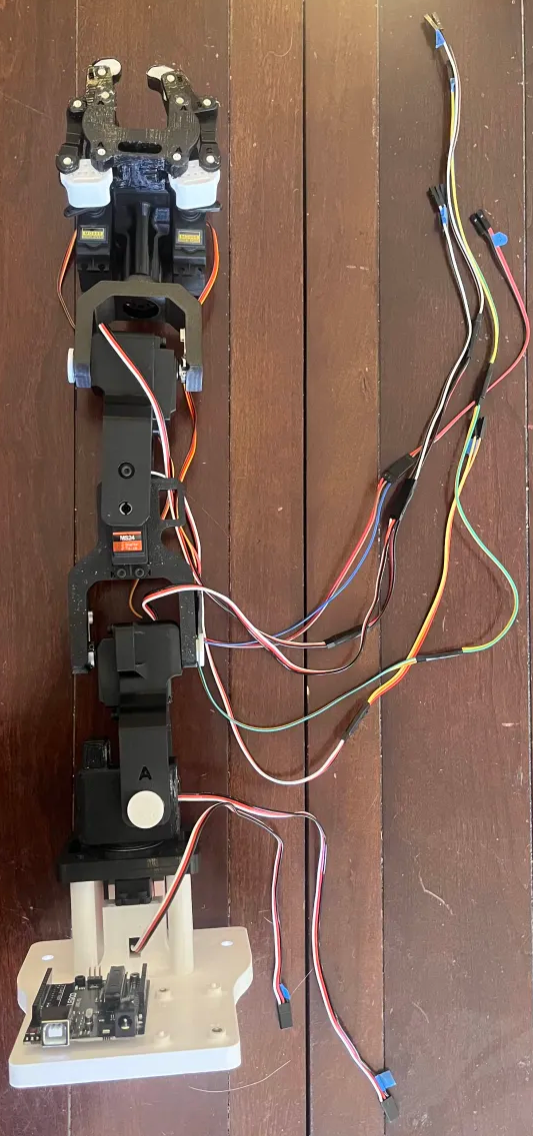
Not everything is plugged in yet (i.e into the PCB/Arduino), but this is roughly the end result we want to shoot for.
Video Guide

Use this video to help you wire. If your screen has a problem loading the video, click the three dots and chose "Picture in Picture."

--
6. Wiring the Arm to the PCB.

We will use CHO-CH6 for this. CH7 is an extra channel in case something's damaged or broken, or if you want to add another servo for something later!

Important: Turn off power, and unplug everything before you wire anything in!!

Connect the female wires to the channels.

Remember how you labeled all of the wires earlier (L4/GND, L2/GND etc etc)? You will now go servo by servo BOTTOM TO TOP, and plug in each of the servos. T1 goes into CHO L1 goes into CH1 L2 goes into CH2 L3 goes into CH3 L4 goes into CH4 LC (Left Claw) goes into CH5 RC(Right Claw) goes into CH6

╰┈➤ Go to Step 2: Quick Check

Quick Check!

Should look like this:
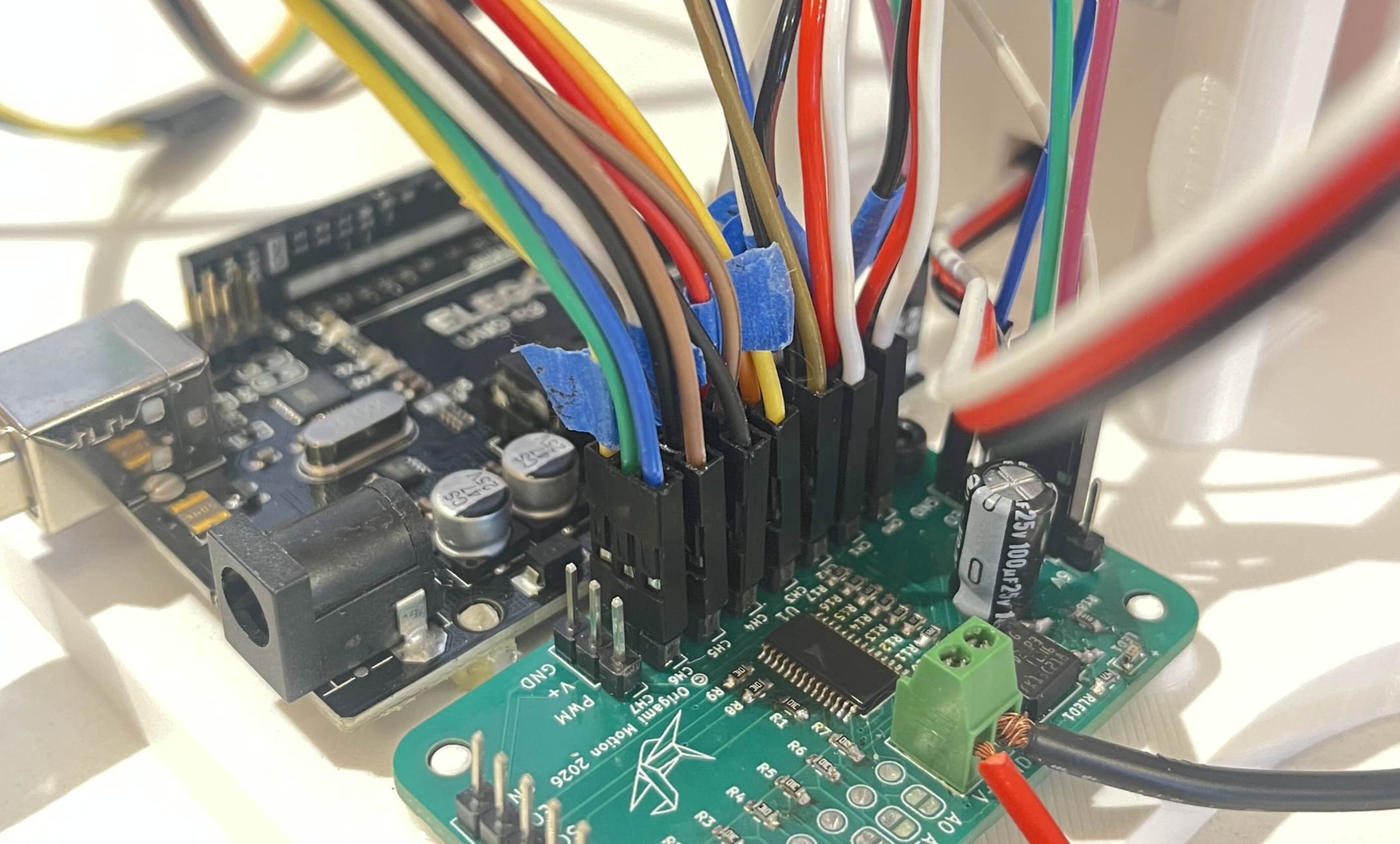
MAKE SURE THE WIRES ARE ACTUALLY FULLY PLUGGED IN. If at any point you start having issues with the control/performance of the servos, you might have loose connections.

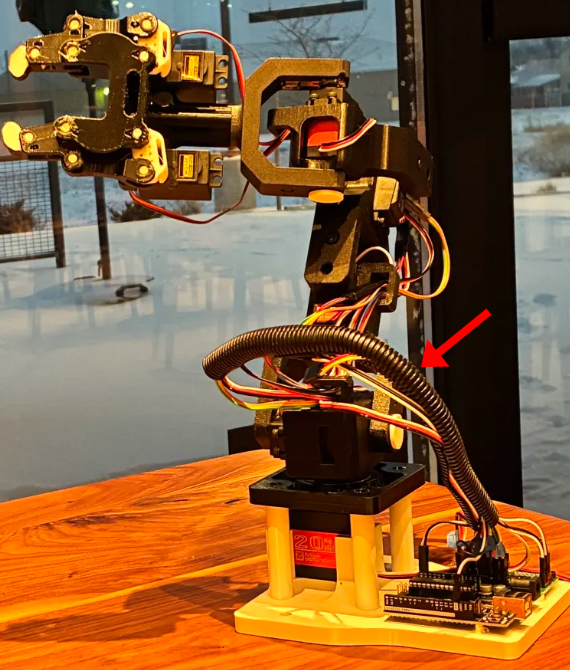
You're welcome to zip tie the wires together a little, but keep the wires free for trouble shooting as needed. It's good for the wires to have some slack as well and room to turn without straining the wires too much.

Once you have confirmed full function, and everything works as expected, you can go back and hot glue the connections in place. 

You can also use something like this split wire protection tube to slip all the dangling wires into. 
 

--
7. The Moment We've All Been Waiting For

IT. IS. TIME.

OUR ARM. CAN. FINALLY. WAVE HELLOOOO!

Let's make her waaaave.

Create a New Arduino Sketch

Open Arduino IDE, and make a new sketch. To do this, click File → New. Delete anything in the code editor.

This program is going to do something very simple. It's going to move each joint to 90 degrees so the arm stands upright... and then make it wave hello by moving one of the joints back and forth!

Step 1: Include the Libraries

Type this at the top:

#include <Wire.h>
#include <Adafruit_PWMServoDriver.h>

What this means:

Like last time, we're going to include some libraries to make our life easier! In C++, #include pulls in pre-written code. The code library Wire.h lets the Arduino talk to our PCB over I2C, also known as SDA and SCL. Adafruit_PWMServoDriver.h knows how to control an actual motor. It handles timing, math, communication...all for us.

Step 2: Creating the Servo Controller

Type this next:

Adafruit_PWMServoDriver pwm = Adafruit_PWMServoDriver(0x40);

What is happening here?

We create an object named pwm using our library. This object represents our PCB board.

What is 0x40?

That is the I²C address of the board. Think of it like a house number so the Arduino knows which device it’s actually talking to. If you had a hundred different PCB boards, they'd all have a different address. If this address is wrong, nothing moves.

By default, your PCB will be set to 0x40. There are ways to change this address if you want, but we'll leave it for now.

Step 3: Important Servo Values

Type this next:

#define SERVOMIN 150
#define SERVOMAX 600
#define SERVO_FREQ 50

What does this mean?

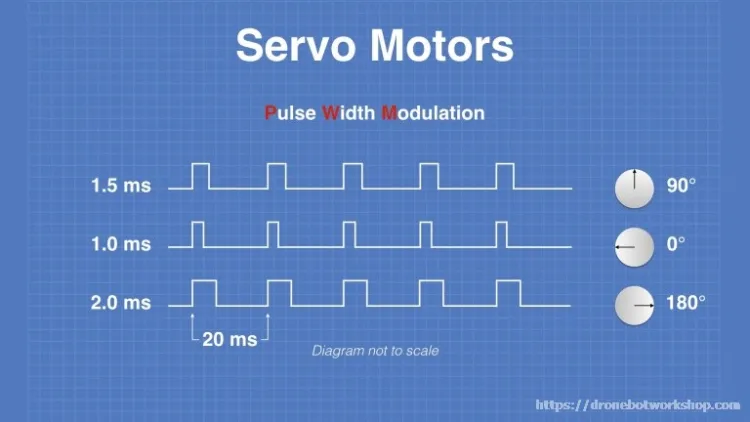
So servos don’t understand angles when we program them through PWM. They DO understand pulse lengths.

Imagine if I was tapping you on the shoulder. If I give you a short tap, it means go left... If I give you a long tap, it means go right.

Servos work the same way. SERVOMIN means a short pulse in one direction, SERVOMAX is a long pulse in the other direction, and SERVO_FREQ is often pulses repeat. These values determine the max range of the motor in terms of time, not angles.

But why these values?

1. First Question: How Often Do Servos Listen for Commands?

Servos don’t listen all the time. They only check their instructions over and over, on a schedule. Most hobby servos expect about 50 signals every second. It's just how they're designed. That’s why we write:

#define SERVO_FREQ 50

2. Turn Frequency into Time

If something happens 50 times per second, how long is one time?

1 second ÷ 50 = 0.02 seconds
0.02 seconds = 20 milliseconds (ms)

0.02 seconds is about 20ms. That means every servo instruction must fit inside a 20 ms window.

But not all of that time window matters! We actually only care about a super small piece.

Typical servo understanding:

~1.0 ms -> 0 Degrees
~1.5 ms -> 90 Degrees
~2.0 ms -> 180 Degrees
~2.5 ms -> 270 Degrees

The rest of the 20 ms is just waiting. So the real useful time is only between 1.0ms and 2.5ms.

But we don't just want to move our motor to 0 degrees, 90 degrees, and 180 degrees! We want to have super precise control. That's one of the many things our PCB chip does for us.

Our PCB chops each 20 ms window into 4096 equal slices.

20 ms ÷ 4096 ≈ 0.00488 ms per slice

So each slice is very tiny.

Let's translate the servo's language into the PCB's language.

Small Pulse (~1.0ms, 0 Degrees)

1.0 ms ÷ 0.00488 ≈ 205 slices

Medium Pulse (~1.5ms, 90 Degrees)

1.5 ms ÷ 0.00488 ≈ 307 slices

Large Pulse (~2.0ms, 180 Degrees)

2.0 ms ÷ 0.00488 ≈ 410 slices

Largest Pulse (~2.5ms, 270 Degrees)

2.5 ms ÷ 0.00488 ≈ 512 slices

So a perfect textbook servo with no issues that lived in outer space with no gravity and mechanical problems... would work within the range:

205 → 512

But we don't live in outer space. (At least I don't... Are you an alien?)

Real servos are super messy! So we add safety space on both ends. This extra room brings our range to 150 and 600. 150 is short enough to reach the low end, but not so short it slams the gears. And 600 is long enough to reach extended angles, but not so long it overheats the motor.

All that math is what gives us this:

#define SERVOMIN 150
#define SERVOMAX 600
#define SERVO_FREQ 50

Step 3: Converting Angles to Servo Signals

Type this next:

int angleToPulse(int angle) {

This creates an int function. Remember int? It's a mini program that does some work, and then returns a value. This one converts an angle in degrees to a servo pulse.

The function is named angleToPulse, and it takes in a number value angle. Inside that function, add this line:

  angle = constrain(angle, 0, 270);

This requires angle to be within 0 and 270 degrees. Our servo motors can only run to 270 degrees.

What does constrain do?

It clamps the number so it can’t go too far. If someone tries:

-50 → it becomes 0
400 → becomes 270

Still in that function, let's add another line:

    return map(angle, 0, 270, SERVOMIN, SERVOMAX);

We want to map our servo range (the 150 - 600 slices from earlier) into numbers we can actually intuitively understand. It'd be really hard to control a servo if we have to do math every single time we want to move it to 100 degrees, or 150 degrees, or 239 degrees...

This creates a map for every value between 0 and 270 to a real servo slice. C++ can do all of this for us so we don't have to do any math.

}

Let's close our code function and move on to the next one!

Step 4: Moving All 7 Servos Together

We can't wave hello without positioning all of our servos. We're going to create a function called setPose. This will allow us to set the entire arm in any pose for as long as we want, then move it to another pose.

So how do we actually want to do this?

Let's Use an Array.

What's that, you might ask? An array is basically a list of numbers stored under one name. Instead of this:

int servo0 = 90;
int servo1 = 90;
int servo2 = 90;
int servo3 = 90;
int servo4 = 90;
int servo5 = 90;
int servo6 = 90;

Nasty, right? Instead, we can write:

int pose[7] = {90, 90, 90, 90, 90, 90, 90};

This creates an array called pose with seven spots.

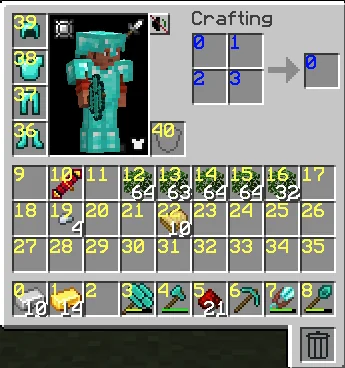
Think of a Minecraft inventory.

Let's look at just the bottom with slots 0 - 8. There are nine main inventory slots in Minecraft.

This is an array called inventory with nine slots. Each slot has an index and a value. The index 0 has a value of 10 (iron). The index 1 has a value of 14 (gold)... and so on. Arrays always start at 0.

So when we create an array called pose, we are creating a "Minecraft inventory" with seven slots. Each of the slots has a value. That value will be our motor's angle.
Type this next:

void setPose(int pose[7]) {

But before we can write any poses, we have to create a function to set them. This function will do some work for us, but not return a value. So we'll label it void. This function will set poses for us, so let's call it setPose. And this function will take in an array we give it-- all our servo positions.

This function will use an array to move seven servos exactly where we want.

Add this inside that function next:

  for (int i = 0; i < 7; i++) {
    pwm.setPWM(i, 0, angleToPulse(pose[i]));
  }

What does THIS mean? This is a for loop. A for loop is a way to tell the computer:

"Do the same job many times, changing just one thing each time."

This loop runs 7 times, and its lines mean:

"Go through all 7 servos, one by one, and move each one to the angle stored for it."

Structure of a For Loop.

All for loops follow the exact same structure.

  for (start; condition; step)

Our loop looks like this.

  for (int i = 0; i < 7; i++)

Let's break it into three jobs.

int i = 0;Where We Start

This line:

Creates a number with one job, to count, and names it i. It sets it to 0. Why 0? Arrays start counting at 0. Servo channel numbers start at 0. So:

i = 0 → first servo

i = 1 → second servo


i = 6 → seventh servo

i is just a counter that keeps track of which servo we’re working on.

i < 7;When to Stop

This is the rule for staying in the loop.

The loop continues as long as:

i < 7

So the loop runs when:

i = 0, i = 1, … i = 6,

But when:

i = 7 ❌

The loop stops.

This makes it run exactly 7 times.

i++How We Move Forward

i++ means:

“Add 1 to i”

So after each loop:

0 → 1

1 → 2

2 → 3


6 → 7 (then stop)

This is how the loop moves one servo at a time.

What Happens Inside the Loop

Everything inside { } runs once per loop.

  pwm.setPWM(i, 0, angleToPulse(pose[i]));

This line is the action. Let’s break it down slowly.

pwm.setPWM(...) — Sending a Command

This tells the PCA9685 servo board... “Set a servo’s position.” pwm is your servo controller object. setPWM is a function built into the library.

There are three pieces inside setPWM.

  setPWM(channel, start, end)

First Piece: i — Which Servo?

i is the servo number.

Because i changes every loop:

First loop → servo 0

Second loop → servo 1


Seventh loop → servo 6

This is how one line of code controls all servos.

Second Piece: 0 — Pulse Start

This means: Start the pulse at time 0. It’s always 0 for servos.

Third Piece: angleToPulse(pose[i]) — How Far to Move

This is the most powerful part.

Step 1: pose[i]

pose is an array

pose[i] means:

“Get the number stored at this index... at slot i in my Minecraft inventory.”

So:

When i = 0 → pose[0]

When i = 3 → pose[3]

Each servo gets its own angle.

Step 2: angleToPulse(...) Servos don’t understand angles. The angleToPulse() function we made earlier fixes that. It takes an angle (like 90°), converts it into a pulse number, and then sends it to the board via setPWM.

Step 5: The Actual Wave

Type this next:

void setup() {
  Wire.begin();

  pwm.begin();
  pwm.setOscillatorFrequency(27000000);
  pwm.setPWMFreq(SERVO_FREQ);
  delay(10);

setup() only runs once. Everything in this function will only ever run one time, so let's set up all our stuff.

Wire.begin(); wakes up our wires.

pwm.begin(); wakes up the actual board.

pwm.setOscillatorFrequency(27000000); sets the internal clock so the timing is accurate. This line is the same in all PCB PWM code for this chip.

pwm.setPWMFreq(SERVO_FREQ); sets servo pulse speed.

delay(10); is a short pause so everything can settle. This is 10ms.

Now we're into setting our positions!

  int pose1[7] = {90, 90, 90, 90, 90, 90, 90};
  int pose2[7] = {90, 90, 90, 40, 90, 90, 90};
  int pose3[7] = {90, 90, 90, 130, 90, 90, 90};

  setPose(pose1);
  delay(1000);

  setPose(pose2);
  delay(1000);

  setPose(pose3);
  delay(1000);

  setPose(pose2);
  delay(1000);

  setPose(pose1);
  delay(1000);
}

You can set your poses now! For a wave, we stood our arm up fully by setting each motor to 90 degrees. See how that array was set with motor values? The first motor gets set to 90, then the second one... and so on.

Pose 2 is the wave all the way to the side. We moved L3 to about 40 degrees, but kept everything else upright.

Pose 3 is the wave all the way to the other side. This one keeps everything at 90 except L3 which moves to 130 degrees.

The line setPose(pose1); sets the arm angles to the ones you defined in that array. The same goes for pose2 and pose3! There are lines of delay(1000); in there-- these keep the servos from killing each other and allow electronics to settle. These are about one second each (1000ms).

Step 5: An Empty loop()

We always have to have a loop() function in any Arduino code, but we don't always have to use it. We'll leave it blank for now.

Type this last:

void loop() {
  // Nothing — wave runs once on power-up
}

Step 6: Final Code

Here's the final code to copy/paste all together! You should have a waving arm now!

#include <Wire.h>
#include <Adafruit_PWMServoDriver.h>
Adafruit_PWMServoDriver pwm = Adafruit_PWMServoDriver(0x40);

// Servo pulse limits
#define SERVOMIN 150
#define SERVOMAX 600
#define SERVO_FREQ 50

// Convert angle (0–270) to PCA9685 pulse
int angleToPulse(int angle) {
  angle = constrain(angle, 0, 270);
  return map(angle, 0, 270, SERVOMIN, SERVOMAX);
}

// Set all 7 servos at once
void setPose(int pose[7]) {
  for (int i = 0; i < 7; i++) {
    pwm.setPWM(i, 0, angleToPulse(pose[i]));
  }
}

void setup() {
  Wire.begin();

  pwm.begin();
  pwm.setOscillatorFrequency(27000000);
  pwm.setPWMFreq(SERVO_FREQ);
  delay(10);

  // Neutral pose
  int pose1[7] = {90, 90, 90, 90, 90, 90, 90};
  int pose2[7] = {90, 90, 90, 40, 90, 90, 90};
  int pose3[7] = {90, 90, 90, 130, 90, 90, 90};

  // Start neutral
  setPose(pose1);
  delay(500);

  // Wave motion
  setPose(pose2);
  delay(1000);

  setPose(pose3);
  delay(1000);

  setPose(pose2);
  delay(1000);

  setPose(pose1);
  delay(1000);
}

void loop() {
  // Nothing — wave runs once on power-up
}

--
8. Consume the last of the squishy bear species... and bring about their extinction.

Or you can keep one as a trophy and as a reminder of your triumphs.

MUAAHAHHHA!!!!

You're all set! On to Chapter 8: Intro to Mechanical Design/CAD! (Optional) ᯓ✈︎